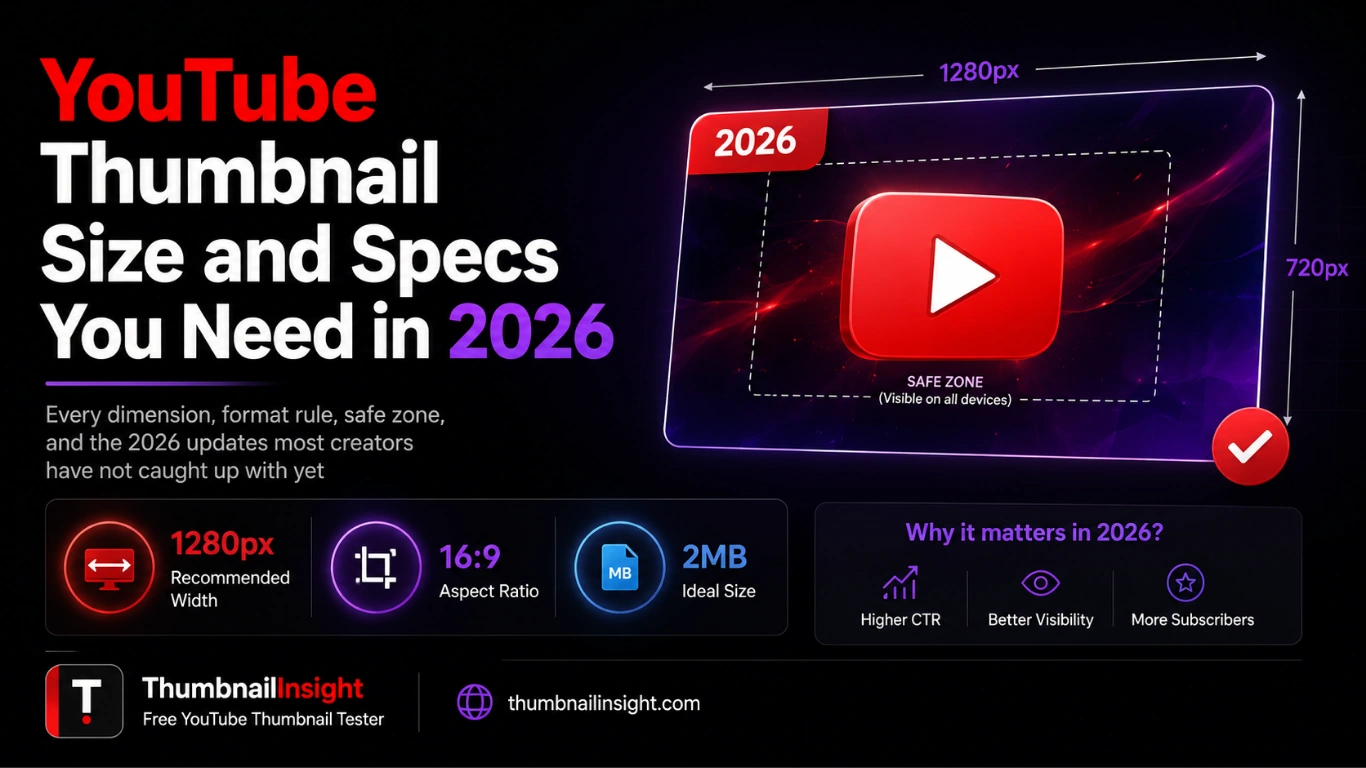
YouTube thumbnail size in 2026 is 1280 x 720 pixels at a 16:9 aspect ratio, and if you get that foundation wrong your video is already losing before a single viewer sees it. A blurry thumbnail signals low production quality before anyone clicks. Text placed in the wrong corner gets buried under YouTube's duration overlay. A file that is too large fails to upload and YouTube quietly falls back to an auto-generated screenshot without ever telling you what happened. These are not edge cases. They happen to creators every single day.
What makes 2026 different from previous years is that YouTube has officially updated its thumbnail guidelines for the first time in nearly a decade. The new recommended resolution is 3840 x 2160 pixels at a full 4K standard, the maximum file size has expanded to 50MB on desktop to support TV surfaces, and WebP is now a fully supported upload format alongside JPG and PNG. Most creators have not caught up with any of these changes yet, which means there is a real opportunity to get ahead simply by knowing what changed and why.
This guide covers every YouTube thumbnail spec you need right now, including the 2026 updates, the safe zone rules that protect your design from YouTube's own overlays, a format comparison that tells you exactly when to use JPG versus PNG versus WebP, and the design decisions that turn a correctly specced thumbnail into one that actually gets clicked.
The Official YouTube Thumbnail Specs for 2026
These are the exact technical requirements YouTube publishes and enforces. Every single one must be correct for your thumbnail to display properly across all devices and surfaces.
Dimensions and Aspect Ratio
The new recommended thumbnail resolution from YouTube's updated 2026 help documentation is 3840 x 2160 pixels, a full 4K standard. YouTube's 2026 help documentation suggests this optional 4K resolution to help future-proof against pixelation on high-density screens. That said, the practical rule is to treat 1280 x 720 as the baseline requirement and treat 4K as a quality edge for creators who want cleaner results after YouTube's compression and scaling.
The reason the 4K recommendation exists is not about display resolution alone. When your starting file is cleaner and more detailed, the final display often looks sharper after YouTube's processing. Large screens expose softness quickly. A thumbnail that looked acceptable on a phone can look noticeably cheap on a TV interface, and modern displays reveal edge quality. Text, outlines, and facial details hold up better when the source image starts with more resolution to work with.
For creators designing in Canva, Photoshop, or Figma, the practical workflow is to design at 1280 x 720 and export at the highest quality your tool supports. If your design software allows 4K export without extra steps, use it. If not, a sharp 1280 x 720 JPG at 85% will perform identically to a 4K upload on every surface except a high-end smart TV.
The minimum width YouTube accepts is 640 pixels, but thumbnails outside the 16:9 ratio are automatically cropped by YouTube's system, which can cut important visual elements from your design without any warning. Never upload a square image, a vertical photo from your phone, or any crop that does not match 16:9. YouTube's automatic cropping is not intelligent. It does not know where your face or text is. It simply fills the required frame and cuts whatever falls outside it.
The 2026 File Size Update
YouTube updated its file size limit and desktop uploads now support up to 50MB, focused on supporting TV-optimised content. Until the 50MB support fully rolls out for your account, it is safest to keep thumbnails at or below 2MB to avoid upload errors, since account-level availability of the new limit is still rolling out as of mid-2026.
For most creators uploading at 1280 x 720, the practical sweet spot remains 200KB to 1MB. There is no visual benefit to uploading a 50MB file for mobile or desktop viewers because YouTube re-encodes and resizes every thumbnail for each surface regardless of the original file size. The expanded limit matters primarily if you are designing at 4K resolution specifically for TV distribution, where YouTube's smart TV apps are most sensitive to source quality.
Accepted File Formats
YouTube accepts JPG, PNG, GIF, BMP, and WebP. Most creators stick with JPG for fast loading or PNG for sharper graphic details. WebP is now fully supported and is technically the superior choice in 2026, producing files that are 25 to 35% smaller than JPG at equivalent visual quality. The full format comparison with specific use cases is covered in detail later in this guide.
GIF and BMP are technically accepted but should not be used in practice. GIF displays only the first frame as a static image since animation does not work for YouTube thumbnails. BMP creates unnecessarily large files with no quality advantage over PNG. Neither format offers anything useful for thumbnail purposes.
The Color Space Requirement
YouTube requires thumbnails to be in the sRGB color space. This is the standard color profile for web content and is the default in most design tools. If you design in Adobe RGB or a wide-gamut color profile and export without converting to sRGB, colors can shift noticeably when YouTube processes the file, particularly in reds, oranges, and saturated blues. Always confirm that sRGB is selected as the color profile at the point of export.
Quick Reference Specs Table
| Spec | Requirement |
|---|---|
| Recommended resolution | 3840 x 2160 px (4K) or 1280 x 720 px minimum |
| Aspect ratio | 16:9 |
| Minimum width | 640 px (not recommended for upload) |
| Maximum file size | 50MB (2026 update) — keep under 2MB until fully rolled out |
| Accepted formats | JPG, PNG, GIF, BMP, WebP |
| Color space | sRGB |
| Safe zone (desktop) | Center 1100 x 620 px of a 1280 x 720 canvas |
| Duration overlay zone | Bottom-right corner — never place critical content here |
| Podcast playlist thumbnails | 1:1 square aspect ratio (exception to the 16:9 rule) |
The Safe Zone Rule Most Creators Have Never Heard Of
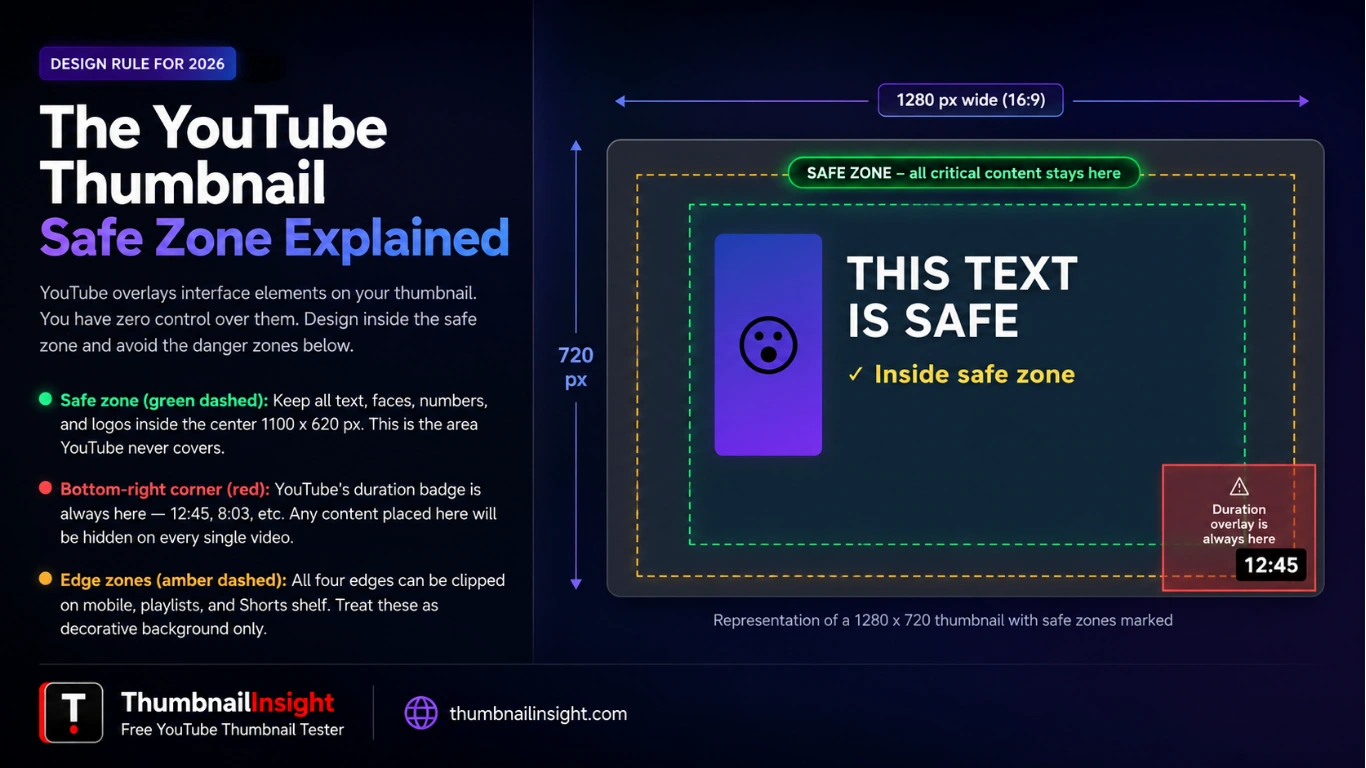
YouTube overlays several interface elements directly on top of your thumbnail and you have zero control over any of them. The most damaging is the video duration timestamp that appears in the bottom-right corner of every single video. It is always there regardless of device, layout, or niche. Any text, logo, face, or key visual detail you place in the bottom-right area of your thumbnail will be partially or fully hidden behind it.
The safe zone recommendation for 2026 is to keep all important content within the center 1100 x 620 pixels of a 1280 x 720 canvas. For a 4K canvas of 3840 x 2160, scale this proportionally to the central 80% of the frame. Nothing important should sit within 90 pixels of any edge on a 1280 x 720 design.
The specific zones to treat with caution are as follows.
Bottom-right corner: The duration badge covers this area on every single video, on every device, in every layout without exception. Never put a number, a face, a key word, or a logo anywhere near this corner.
Bottom strip across the full width: A playback progress bar appears on hover in desktop view. Anything sitting in the very bottom strip of your thumbnail risks being obscured during the moments that matter most — when a viewer is hovering and actively considering whether to click.
Far left edge: This can be cropped in the Shorts shelf and certain playlist display formats, particularly on mobile devices.
Top edge: Clipped in some playlist thumbnail views on mobile, especially in the subscription feed where thumbnails are displayed in a compressed format.
A simple mental model that works for any thumbnail size: imagine drawing a margin 90 pixels wide inside all four edges of your canvas. Everything important lives inside that margin. Everything outside it is a decorative background only. Apply this rule once and it becomes automatic.
Keep all text, faces, and logos here
JPG vs PNG vs WebP: Which Format Should You Use?
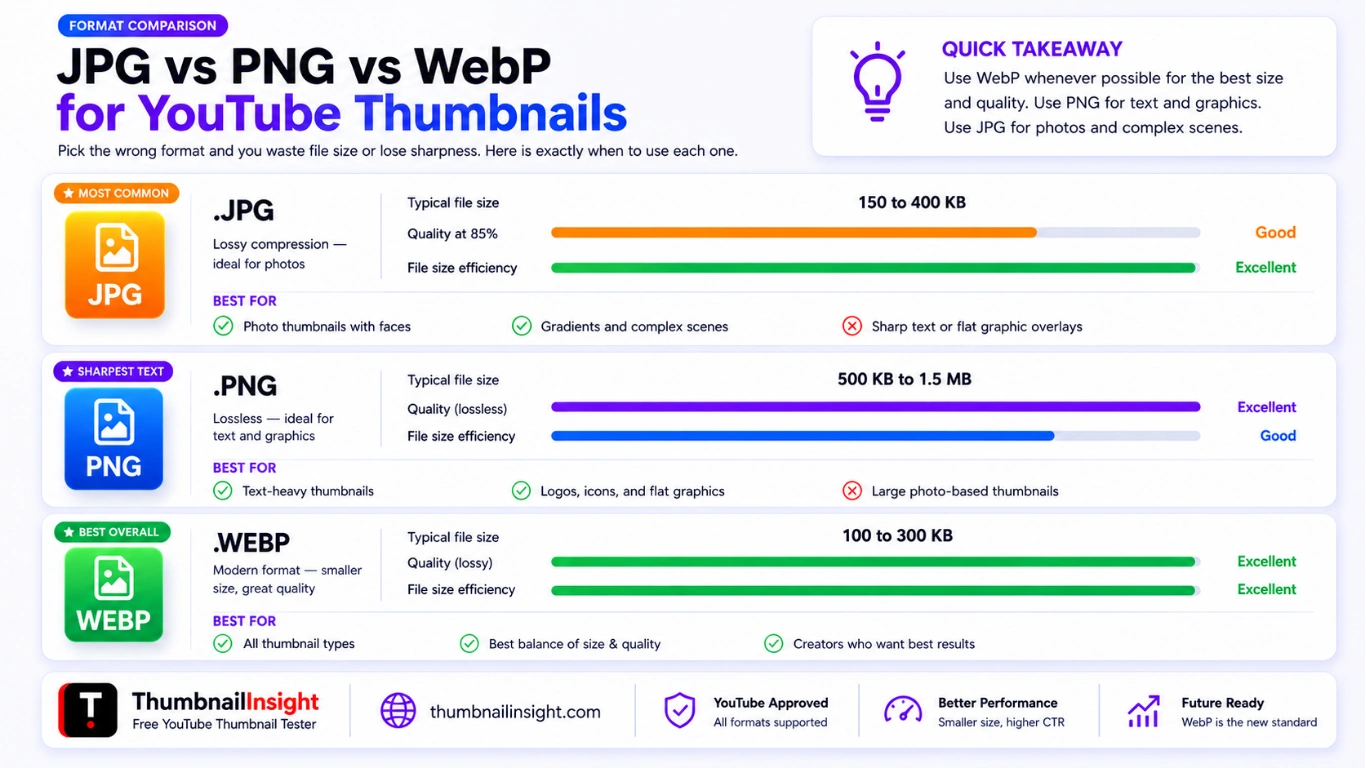
The right format depends entirely on what type of thumbnail you are creating, not on a blanket rule that one format is always better than another.
JPG is the right choice for photo-heavy thumbnails where a face, a scene, or a photograph is the dominant element. JPG uses lossy compression that is optimised for photographic content with gradients, skin tones, and complex colour transitions. A 1280 x 720 JPG at 80 to 85% quality typically weighs between 150KB and 400KB, well within any upload limit. The compression is invisible at YouTube's display sizes. Start with JPG at a quality setting of around 85%. If the file exceeds 2MB, lower the quality slightly or simplify any complex gradients in the background. For most creators, JPG at quality 85 is the correct default and it is rarely wrong.
PNG is the right choice when your thumbnail contains sharp text overlays, flat colour backgrounds, logos, or graphic elements with hard edges and clean lines. PNG uses lossless compression, which means every pixel is preserved exactly as you designed it. Text that looks crisp at full canvas size in Canva will look equally crisp when rendered in the YouTube feed. The trade-off is file size. A 1280 x 720 PNG typically lands between 500KB and 1.5MB depending on the complexity of the design, which is still within a safe range for most clean graphic-style thumbnails.
WebP is the technically superior format in 2026. It is now fully accepted by YouTube for thumbnail uploads and produces files that are 25 to 35% smaller than JPG at equivalent visual quality. WebP supports both lossy and lossless compression modes, making it suitable for both photographic and graphic thumbnail styles. YouTube converts non-WebP uploads into WebP for delivery anyway, so starting in WebP means one fewer compression step and better final quality. The only practical barrier is that not all design tools export WebP by default. Canva supports WebP export on paid plans. Photoshop supports it natively. If your tool supports it, use it. If not, JPG at 85% remains the best widely available alternative.
Format Decision Guide
| Thumbnail Type | Best Format | Target File Size |
|---|---|---|
| Photo with face and complex background | JPG at 85% | 150 to 400KB |
| Graphic with sharp text and flat colour | PNG | 500KB to 1.5MB |
| Mixed photo and text overlays (most thumbnails) | JPG 85% or WebP | 200 to 600KB |
| Logo or branding with transparent background | PNG | 50 to 300KB |
| Any type, if tool supports WebP export | WebP | 100 to 300KB |
How YouTube Displays Your Thumbnail Across Devices
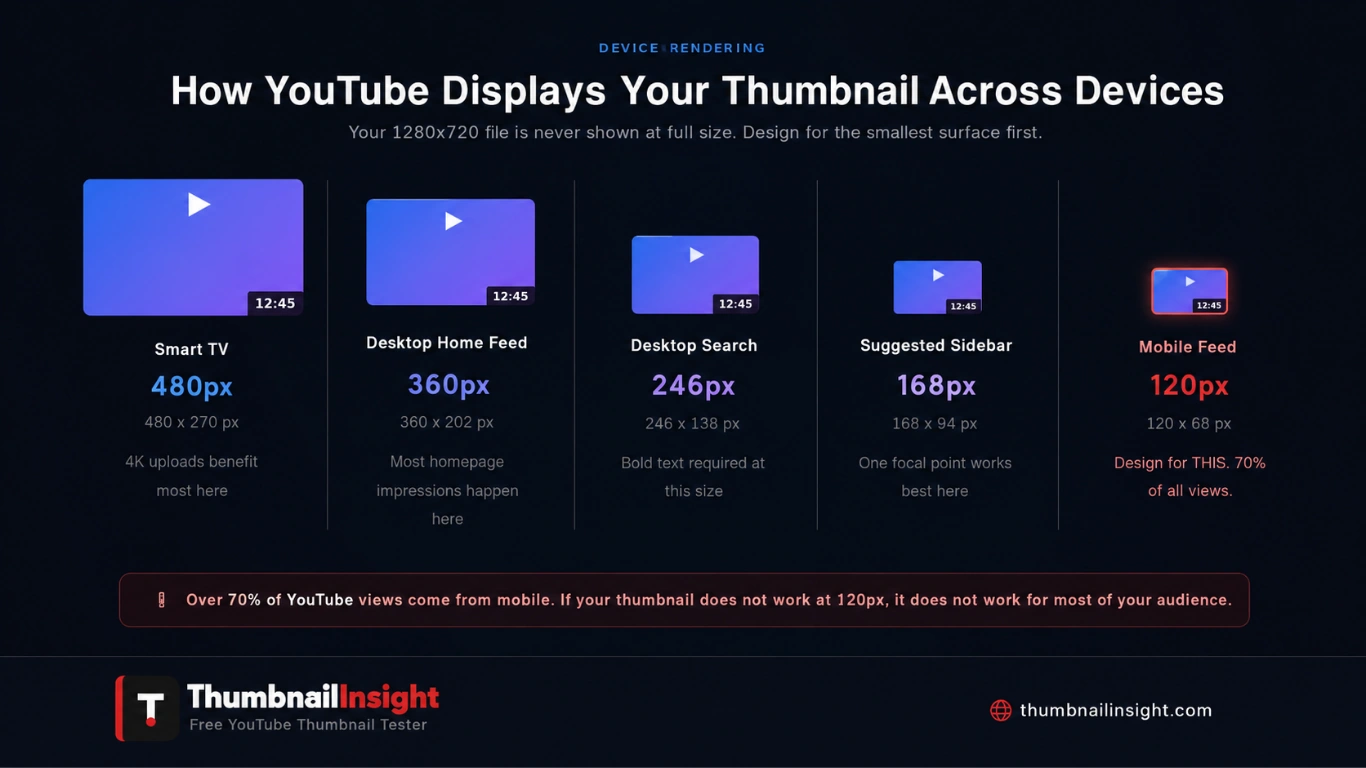
Your 1280 x 720 thumbnail is never shown at full size to any viewer. YouTube compresses and resizes it for every surface it appears on. Understanding these actual display sizes is what separates a thumbnail designed to look good on the upload form from one designed to perform for the person scrolling the feed.
Most discovery happens at 320 x 180 pixels or smaller. Design with this constraint in mind because anything that does not read clearly at that scale will not drive clicks regardless of how polished it looks at full resolution.
The mobile feed size of 120 x 68 pixels is your binding design constraint. Build for that first. If your thumbnail reads clearly at that size, it will look excellent at every larger size above it. The reverse is never true. A thumbnail that only works at full canvas resolution will fail the majority of your actual audience every single time.
Myth vs. Fact: YouTube Thumbnail Specs in 2026
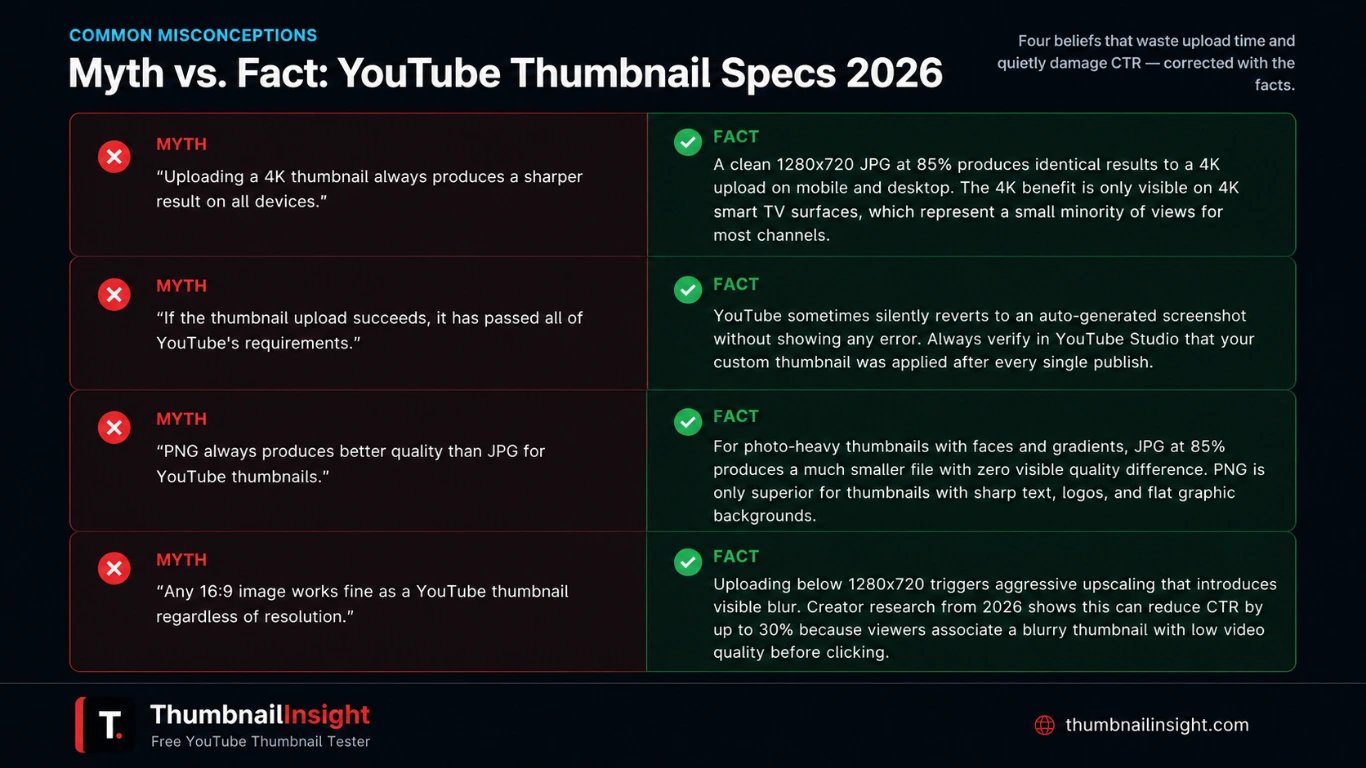
Uploading a 4K thumbnail always produces a sharper result on all devices.
The key insight is not that bigger is always better but that source quality affects final perceived quality. On mobile and desktop, a clean 1280 x 720 JPG at 85% produces effectively identical results to a 4K upload. The 4K benefit is real but only meaningfully visible on 4K smart TV surfaces, which represent a minority of viewing for most channels.
If the thumbnail upload succeeds, the file passes all requirements.
YouTube does not always display an error when your thumbnail fails spec requirements. Exceeding the file size limit can cause YouTube to silently revert to an auto-generated screenshot without notifying you. Always confirm your custom thumbnail was applied by checking your video in YouTube Studio after publishing.
PNG always produces better quality than JPG for thumbnails.
For photo-heavy thumbnails with faces, gradients, and complex imagery, JPG at 85% quality produces a much smaller file with no visible quality difference. PNG is only clearly superior for thumbnails with sharp text overlays, logos, and flat graphic backgrounds where lossless compression genuinely preserves visual quality better.
Any 16:9 image will work fine as a YouTube thumbnail.
The 16:9 ratio is required but the resolution matters equally. Uploading below 1280 x 720 can trigger aggressive upscaling that introduces blur and can reduce CTR by up to 30% according to creator research published in 2026. A blurry thumbnail signals low production quality and viewers consistently associate that signal with low video quality before watching a single second.
Designing Within the Specs: What Actually Moves CTR
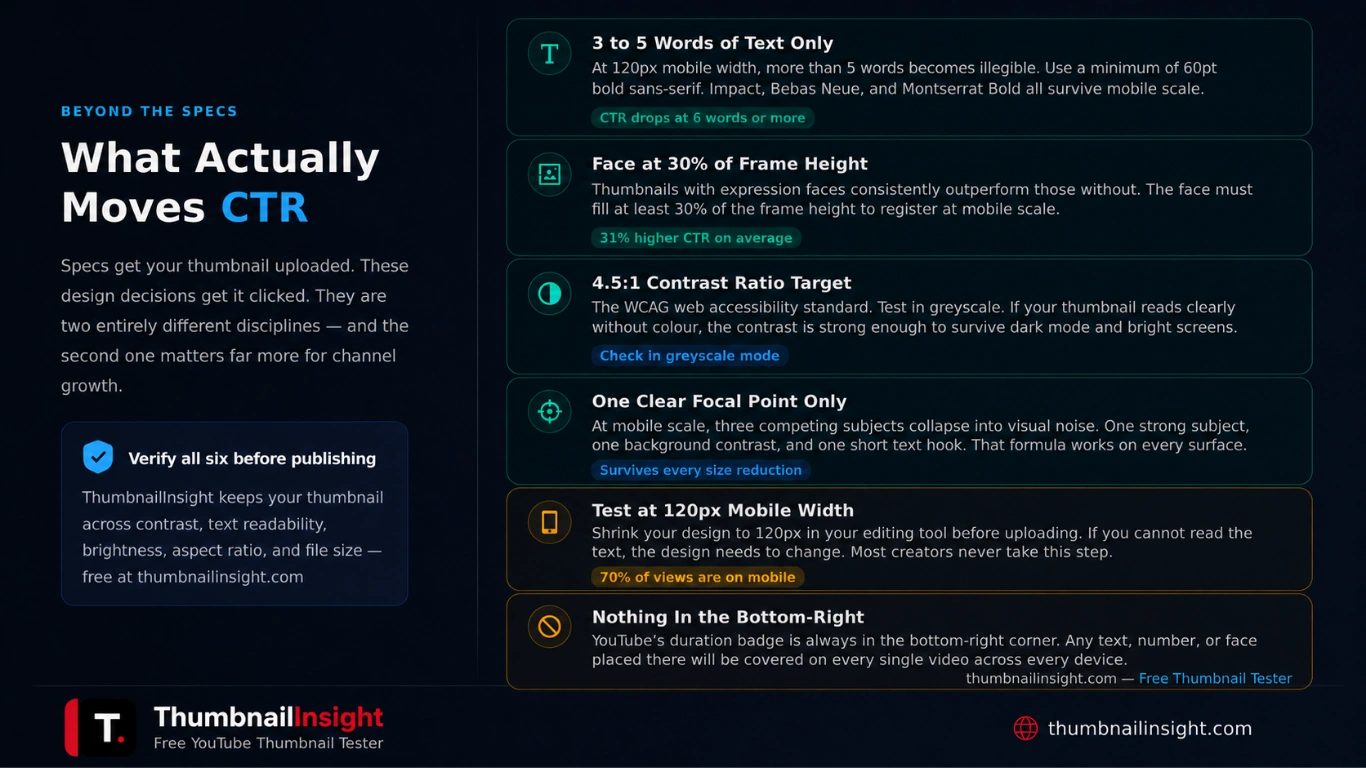
Getting the specs right gets your thumbnail uploaded correctly. Getting the design right gets it clicked. These are two separate disciplines and the second one has a significantly larger impact on channel growth.
The specs create the technical floor. What you build on top of that floor is what drives real results. Based on 2026 creator research and thumbnail performance analysis across niches, the design decisions that most directly affect CTR within the spec constraints are these.
Text size and word count matter more than most creators realise. At the 120 x 68 pixel mobile display size, anything smaller than 60pt on a 1280 x 720 canvas becomes illegible. Bold sans-serif fonts such as Impact, Bebas Neue, and Montserrat Bold hold up at small sizes far better than script or decorative typefaces, which dissolve into blurry lines at mobile scale. Three to five words of text is the optimal range. Once a thumbnail reaches six words or more, CTR measurably drops because the cognitive load is too high for a viewer making a two-second scroll decision.
Contrast ratio is the most underrated factor in thumbnail design. The target contrast ratio between text and background is 4.5:1, the same standard used in web accessibility guidelines. At mobile scale, contrast is the primary driver of legibility. High contrast colour combinations such as red and white, yellow and black, or blue and orange outperform muted palettes in virtually every niche. The fastest way to verify this is to view your thumbnail in greyscale. If it reads clearly without colour, the contrast is strong enough. If the design collapses when you remove colour, it will not survive dark mode or a bright outdoor screen.
Face size at mobile scale is what separates recognisable from invisible. Thumbnails with human faces showing clear, high-emotion expressions consistently achieve higher CTR than thumbnails without faces. The face must be large enough to register at 120 pixels wide. A face that fills 20% of your 1280 x 720 canvas becomes a barely visible smudge at mobile scale. Aim for a face that occupies at least 30% of the thumbnail height. Zoom in more than feels comfortable at full canvas resolution. It will look right at the size viewers actually see it.
One clear focal point outperforms three every time. At mobile scale, a complex composition with multiple visual elements collapses into noise. One strong subject, one strong background contrast, and one short text hook is the formula that survives every size reduction and performs across every YouTube surface without exception.
How to Check Your Specs Before Every Upload
The fastest way to confirm your thumbnail meets every spec before publishing is to use a dedicated thumbnail tester. ThumbnailInsight checks your file's dimensions, aspect ratio, and file size automatically the moment you upload. If anything falls outside YouTube's requirements you receive a specific, actionable tip rather than a vague warning.
Beyond the spec check, the tool previews your thumbnail across all 7 YouTube layouts including the mobile feed at actual display size, the bell notification at its square crop, the contrast test in greyscale, and the size test at four real YouTube rendering sizes from 168px down to 40px. These checks take under two minutes and catch the issues that a spec checklist alone cannot find. Text that is technically within the right size range but becomes unreadable at mobile scale. A focal point that passes the dimension check but gets cut by the safe zone overlay. Colours that look vivid on your monitor but collapse in dark mode or on a low-brightness phone screen.
Upload your thumbnail at ThumbnailInsight before every video. No account required. Your image never leaves your browser.
What Thumbnail Analysis Across Thousands of Videos Shows
After analysing thumbnail performance across thousands of YouTube channels in every major niche, the clearest finding is not about resolution or format. It is about the gap between how creators see their thumbnail and how viewers actually encounter it.
Most creators design at full resolution on a desktop monitor with a white background. Most viewers see that same thumbnail at 120 pixels wide on a phone screen, in a dark room, surrounded by competing thumbnails, while scrolling at a pace that gives each thumbnail less than two seconds of consideration. These are not the same experience and they should not be treated as the same design problem.
The creators who consistently achieve above-average CTR are not always the best designers. They are the most systematic testers. They preview before they publish. They check on their mobile. They check contrast. They update thumbnails on underperforming older videos and watch CTR recover. Spec compliance is the entry point. Everything after that is about meeting the viewer where they actually are.
Frequently Asked Questions
Conclusion
YouTube thumbnail specs are not complicated but they are precise. Get one element wrong (wrong ratio, a file that is too large, text sitting in the bottom-right corner) and your thumbnail either fails to upload, displays incorrectly, or loses important information to overlays you have no control over.
The 2026 changes matter most for creators targeting smart TV audiences, who can now benefit from 4K resolution uploads and the expanded 50MB file size limit. For everyone else, a sharp 1280 x 720 file at 16:9 in JPG at 85% quality with all critical content inside the safe zone remains the formula that works reliably on every surface YouTube uses to show your content to viewers.
Specs get your thumbnail on the platform. Design gets it clicked. And testing before you publish is the two-minute habit that makes both of those things work together.
Check your thumbnail specs and preview across all 7 YouTube layouts for free
No account needed, results in under two seconds.
Test your thumbnail free →