Learning how to create a YouTube thumbnail the right way is one of the highest-leverage skills a creator can build, because no other single element has more control over whether your video gets watched or ignored.
Here is the uncomfortable truth most creators skip past: YouTube's algorithm tests your video by first showing it to a small group of viewers. If they click, the algorithm pushes it to more people. If they don't, your video quietly stalls. That entire first test comes down to two things: your thumbnail and your title. The thumbnail does roughly 80% of the click decision work. It is the first thing a viewer processes, usually in under half a second, and it determines whether they ever bother reading your title at all.
Most creators treat thumbnails as the last step in their workflow. It should be one of the first. This guide walks you through the complete process, covering technical setup, design decisions, and pre-publish testing, so your next thumbnail gives your video a real chance.
Before You Start, Understand What a Great Thumbnail Actually Does
A thumbnail has one job: earn the click. Not look beautiful. Not show off your production skills. Not pack in as much information as possible. Earn the click.
The mechanism behind every high-CTR thumbnail is a curiosity gap. The best thumbnails raise a question without answering it. They show a result without showing the process. They imply a story without telling it. The viewer clicks because they need to resolve the gap between what the thumbnail promises and what they don't yet know.
This is the lens you should design through at every step. Every decision about color, composition, text, and facial expression should be asked: does this widen the curiosity gap, or does it close it? If your thumbnail fully explains the video, there is no reason to click. If it creates an itch the viewer needs to scratch, the click becomes almost automatic.
Top creators including Ali Abdaal and MrBeast design their thumbnail and write their title before they shoot the video. If they cannot think of a compelling thumbnail-title pair, that is a signal the video idea may not be strong enough to earn clicks in the first place. That is how seriously they take this step.
Step 1: Get the Technical Specs Right
Every great thumbnail starts with the correct foundation. Wrong dimensions or file settings can make even a well-designed thumbnail look pixelated, get flagged by YouTube's upload system, or display poorly across devices.
The non-negotiables:
- Dimensions: 1280 x 720 pixels at a 16:9 aspect ratio. This is YouTube's official recommendation and the format that renders correctly across desktop, mobile, and TV screens.
- File size: Keep it under 2MB. PNG is the best format choice for most thumbnails because it delivers the highest quality-to-file-size ratio. JPG works well for photo-heavy designs. Avoid BMP and GIF.
- Safe zone: Avoid placing important elements such as text, faces, and key visuals in the bottom-right corner of the thumbnail. That is where YouTube's video duration badge sits. Anything you put there will be partially covered when your thumbnail appears in search results and the home feed.
A fast spec check: Upload your finished thumbnail to ThumbnailInsight before publishing. Its 6-metric CTR analysis automatically checks aspect ratio and file size and tells you specifically what is wrong if anything is off. No account needed, no uploads to a server, it all runs in your browser.
Step 2: Choose Your Design Tool
You do not need expensive software to create thumbnails that get clicks. The best tool is the one that lets you work quickly, maintain consistency, and produce a clean result without spending an hour fighting the interface.
Here is how the main options break down:
The bottom line: start with Canva. As your channel grows and your thumbnail process becomes second nature, you can graduate to more advanced tools if the creative control matters to you.
Step 3: Plan Your Thumbnail Concept Before You Design
This is the step most creators skip, and it is the one that separates thumbnails that get clicks from thumbnails that look fine and do nothing.
Plan the concept before you open your design tool. Specifically, plan the thumbnail and the video title together as a single unit. The thumbnail should open a curiosity gap that the title gives context to. They should never repeat each other.
The system to think through:
- What is the single most interesting, surprising, or emotionally compelling element of this video? That is your thumbnail's job to communicate visually. Not the full story, just the hook that makes someone need to know more.
- What will the face or key visual communicate? If you are on camera, what expression captures the emotional payoff of the video without giving it away? If it is a faceless thumbnail, what image, number, or visual represents the most intriguing version of your video's premise?
- What three words, at most, will the text say? The text should add information the image does not communicate, not repeat what is already visible.
A useful test from top creators: if you cannot describe a clear, compelling thumbnail concept for a video idea in 30 seconds, the video concept may not be strong enough yet. The best video ideas have a natural thumbnail. The weak ones make you sit there for an hour trying to figure out how to make the thumbnail interesting.
Step 4: Compose the Shot (Or Choose the Right Image)
Once you know what your thumbnail needs to communicate, you need the raw material: either a photo you shoot specifically for the thumbnail or an image you select and manipulate in your design tool.
If you are shooting a photo for your thumbnail
Do not use a screenshot from the video. Screenshots are almost never the strongest thumbnail option. The lighting is usually mixed, the framing is optimized for video rather than a static image, and you have no control over the expression. Shoot your thumbnail photo separately.
Frame the shot with the rule of thirds in mind. Imagine a 3x3 grid over the image. Place your face or key subject at one of the four intersections where the gridlines cross, not dead center. Off-center composition creates visual tension that reads as more dynamic and professional, and it leaves room for text without covering your face.
Use flat, even lighting so your face reads clearly at small thumbnail sizes. The side lighting and dramatic shadows that look cinematic in video can make a face unrecognizable at the 168px size that thumbnails appear in YouTube search results on mobile.
Shoot 10 to 15 variations of the expression. Capture the neutral, the surprised, the excited, and the curious. The best thumbnail expression is rarely obvious from the shoot. Give yourself options.
If you are using a product image, graphic, or stock photo
Choose a single dominant image. One hero element that immediately communicates the visual hook. Avoid compound images with two or three competing objects of equal size. They confuse the eye and slow down the half-second processing window you have.
Make sure the background can be isolated or simplified. A busy background is one of the most common thumbnail killers. The subject needs to pop cleanly against the background, which usually means removing the background entirely and replacing it with a solid color, gradient, or intentionally blurred version.
Step 5: Build the Design in 5 Layers
Whether you use Canva, Photoshop, or any other tool, think of every thumbnail as being built from the same five layers:
Start with the background color or image. This sets the mood of the entire thumbnail and determines what contrast you have to work with. Solid colors and gradients work well because they give you maximum control over contrast. If you use a photo background, desaturate or blur it so it does not compete with the subject. High contrast between subject and background is the foundation.
Place your dominant visual element such as a face, product, graphic, or number. This should take up 40 to 60% of the frame and sit at or near a rule-of-thirds intersection. If you are using a person, cut out the background so the subject sits cleanly against your Layer 1 background.
Add any secondary visual element that gives context to the main subject. This could be an arrow pointing at a result, an object that implies the video's topic, a before/after pairing, or a simple icon. Keep this to one supporting element maximum. The moment you add a third visual element, you are introducing clutter that slows down the viewer's processing.
Add your text last, once you can see how it interacts with everything underneath it. Keep it to three to five words in a bold, heavy-weight sans-serif font. Size the text so it reads clearly when the thumbnail is reduced to phone-screen dimensions. Add a white outline or drop shadow around the text so it reads against any background color. Avoid placing text in the bottom-right corner (duration badge), top-left corner, or anywhere it covers the face's eyes.
Add a small logo or brand mark if you use one. This should be subtle: a small icon in a consistent corner across all your thumbnails. The goal is recognition, not visual noise. Returning subscribers will notice it. New viewers will not, and that is fine.
Step 6: Apply the 3 Design Principles That Drive Clicks
Once the five layers are in place, check the design against these three principles before you finalize anything.
Principle 1: Contrast is king
View the thumbnail in grayscale. If the subject and text do not stand out clearly without color, the contrast is not strong enough. Color is powerful, but contrast is the engine underneath it. A thumbnail that relies on color alone to stand out will fail on grayscale screens, in low-brightness conditions, and for colorblind viewers. Contrast that works without color will work everywhere.
High-contrast combinations that consistently perform well: yellow or white text on a dark background, a bright subject against a dark or neutral background, a single saturated color against a desaturated or near-black backdrop.
Principle 2: Simplicity beats completeness
You are not trying to tell the whole story in the thumbnail. You are trying to make someone stop and feel something: curiosity, surprise, excitement, or urgency. Every element you add past the first two or three makes the thumbnail harder to process and reduces the emotional impact of each individual element.
The 2026 trend across high-performing channels is cleaner, less-cluttered designs. The peak-era approach of cramming every visual element into the frame has cooled. Two elements and a short text overlay consistently outperform five elements with labels.
Principle 3: Test at the size your audience actually sees it
Design at 1280x720 but evaluate at 168x94, the size that thumbnails appear in YouTube mobile search results. Most design decisions that seem obvious at full size are unreadable at mobile scale. Text that is clear at full canvas size can become an illegible blur. A face that reads clearly at desktop can become unrecognizable at the actual display size.
Zoom out aggressively when you think the design is finished. Ask: what is the first thing I notice? What emotion does it communicate? Is anything competing with the main element? Can I read the text? If you cannot answer all four questions positively at small scale, keep simplifying.
Step 7: Test Your Thumbnail Across Every YouTube Surface Before Publishing
This is the step that most tutorials skip entirely, and it is the one that will save you the most clicks over your channel's lifetime. Your thumbnail does not live in one environment; it appears across seven different YouTube surfaces, each with different sizes, contexts, and surrounding visual noise. A thumbnail designed without previewing across all seven is a thumbnail designed blind.
The seven surfaces your thumbnail appears on:
- Search results: Your thumbnail appears next to your title and channel name. This is where keyword intent is highest. Does the thumbnail compete with the other results? Is it immediately clear what the video is about?
- Home feed: This is the coldest audience. These viewers were not looking for you. The thumbnail has to stop a passive scroll with zero context. This is where emotional hooks and strong contrast do the most work.
- Suggested videos (sidebar): Your thumbnail appears smaller, next to a list of other videos. Simplicity and strong contrast matter even more here. Cluttered thumbnails disappear entirely at this size.
- Mobile feed: Over 70% of YouTube views come from mobile. This is where you will lose or win the majority of your clicks. The thumbnail appears at a fraction of the size it looks on your design canvas.
- Bell notification: When a subscriber gets a notification for your video, your thumbnail appears on their lock screen or notification tray. This is a tiny preview that most creators have never seen. If the image is unrecognizable at that size, you are losing clicks from your most engaged audience.
- Small size legibility test: YouTube displays thumbnails at four different sizes across its interface, from full-width desktop down to a 40px icon on connected TVs. Text and faces need to be readable at every scale.
- Contrast test: Seeing your thumbnail in grayscale, light mode, and high-contrast mode reveals whether the design holds up across different devices and viewing conditions.
ThumbnailInsight previews your thumbnail across all seven of these surfaces instantly, with no account required and no upload to any server. Upload your thumbnail, add your planned title and channel name, and check all seven layouts in under two seconds. The tool also gives you a 6-metric CTR score covering contrast, color pop, brightness, text readability, aspect ratio, and file size, along with specific improvement tips for anything that scores low. It is the fastest feedback loop available before publishing, and it is 100% free.
Step 8: Upload Your Thumbnail in YouTube Studio
Once the design passes the pre-publish check, uploading it takes less than a minute.
Go to YouTube Studio and open the video you want to upload the thumbnail for. If the video is not yet published, you will find the thumbnail option in the Details tab of the upload flow. If the video is already live, click on it in the Content section, then click the pencil icon to edit.
In the Thumbnail section, click Upload thumbnail and select your file. YouTube accepts JPG, PNG, GIF, and BMP formats under 2MB. The change takes effect within a few minutes on most devices.
You can update a thumbnail at any time, even on videos that have been live for years. This is worth knowing because refreshing old thumbnails on videos with search traffic is one of the fastest ways to improve performance from content you have already created.
Step 9: Track Performance and Iterate
Publishing the thumbnail is not the end of the process. It is the beginning of the feedback loop.
Go to YouTube Studio → Analytics → Reach and look at your video's Impressions Click-Through Rate. Give the video 48 to 72 hours after publishing to accumulate enough impressions for a meaningful read. Check the overall CTR, then break it down by traffic source: search, browse, and suggested often show very different numbers for the same thumbnail.
If your CTR is below your channel average after 72 hours and the video is getting impressions, the thumbnail is the first variable to test. Redesign it based on the principles in this guide, re-upload it in YouTube Studio, and monitor whether CTR improves over the following week.
Keep a simple record of what you change and what the CTR was before and after. Over time, this log becomes the most valuable data set you have, giving you a clear picture of exactly what thumbnail elements your specific audience responds to.
The Thumbnail Types That Get the Most Clicks in 2026
Not all thumbnail formats perform equally across all niches. Here is what the data shows is working best right now:
| Thumbnail Type | What It Is | Best For |
|---|---|---|
| Authentic Reaction Face | A genuine close-up expression matching the video's emotional payoff | Vlogs, challenges, personal finance, gaming |
| Before and After | Two contrasting states side by side showing transformation | Fitness, home improvement, tutorials, reviews |
| Bold Color Block | Flat or gradient background with a single dominant element and minimal text | Education, tech, explainers |
| Number-Led | A large number as the primary visual element | Listicles, results-based content, case studies |
| Question-Based | A visual that implies an unanswered question | Commentary, hot takes, investigative content |
| Minimalist Hero Object | A single product, item, or graphic against a clean background | Reviews, unboxings, gear content |
The formats growing fastest in 2026 are the authentic reaction and minimalist hero object styles. The exaggerated, maximalist thumbnails that dominated 2022 to 2023 are losing effectiveness as viewers become more discerning. The pivot across high-performing channels is toward designs that feel honest and signal genuine value rather than manufactured shock.
Myth vs. Fact: What People Get Wrong When Creating YouTube Thumbnails
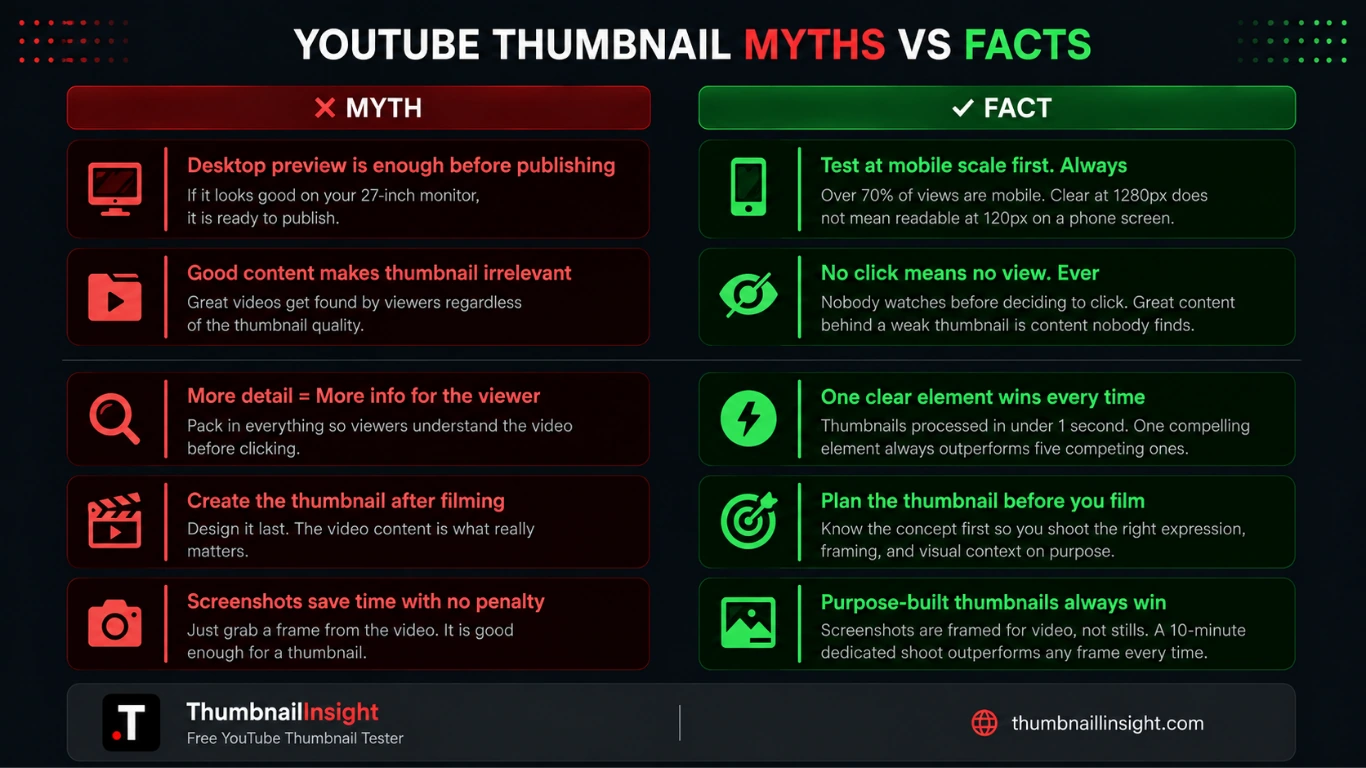
More detail in the thumbnail means more information for the viewer.
More detail means slower processing and fewer clicks. Thumbnails are consumed in under a second. Every additional element slows the viewer down. The thumbnail that communicates one compelling thing clearly will always outperform the thumbnail trying to communicate five things at once.
The thumbnail is something you create after the video is finished.
The best thumbnails are planned before filming. If you know what the thumbnail will be, you can shoot the right expression, capture the right moment, and set up the right visual context on purpose rather than scraping for something usable from existing footage.
Using a screenshot from the video as the thumbnail saves time without hurting performance.
Auto-generated screenshots almost never match the click performance of a purpose-built thumbnail. The lighting, framing, and expression are optimized for video, not for a static image competing in a feed. A purpose-built thumbnail shot in 10 minutes will almost always outperform the best screenshot.
Testing your thumbnail on a desktop is enough before publishing.
The majority of YouTube views come from mobile devices. A thumbnail that looks great at 1280x720 on your monitor can become an unreadable blur on a phone screen or a completely unrecognizable image in a bell notification. Test at small sizes and across all surfaces before publishing.
If the video is good, the thumbnail does not matter as much.
Nobody watches the video before deciding to click. The video quality is irrelevant until the thumbnail earns the click. Great content behind a weak thumbnail is content nobody finds.
Your Pre-Publish Thumbnail Checklist
Before uploading any thumbnail, run through this checklist. It takes 60 seconds and will save you from the most common mistakes that cost creators clicks.
If everything checks out, publish with confidence. If anything fails the check, fix that specific item before uploading. One small adjustment to contrast or text size before publishing is worth more than any optimization you can do after the fact.
The Pattern That Separates Good Thumbnails From Great Ones
The creators who consistently maintain above-average CTR are not necessarily better designers. They are better at treating thumbnail creation as a repeatable system rather than a creative exercise.
A cooking creator with 2,000 subscribers had a CTR sitting at 1.2%. Her videos were well-edited, her recipes were genuinely unique, and she posted consistently. When her analytics were reviewed, the issue was immediately visible: her thumbnails were essentially screenshots with no text, no contrast, and no clear focal point. Nothing about the thumbnail communicated what was interesting about the video. Viewers had no reason to click.
After switching to purpose-built thumbnails. A close-up of the finished dish against a clean background, with two or three words of text creating a specific hook. Her CTR moved to 4.8% within six weeks. The content did not change. The packaging did.
That gap between 1.2% and 4.8% is not talent. It is a process.
The most important habit a creator can build is closing the feedback loop: plan the thumbnail before filming, test it before publishing, check the CTR after publishing, and carry what you learn into the next video. Creators who do this consistently improve. Creators who treat each thumbnail as a one-off creative task stay stuck at the same CTR.
FAQ: Creating YouTube Thumbnails
Conclusion
Creating a YouTube thumbnail that gets clicks is a skill that compounds. Every video you publish is a chance to test a hypothesis about what your specific audience responds to. Every data point you collect makes the next thumbnail smarter. Over time, that feedback loop is worth more than any design talent.
The process is straightforward: plan the concept before filming, get the specs right, build the design with contrast and simplicity as your guiding principles, test across all seven YouTube surfaces before publishing, and track the results. Repeat.
The single fastest thing you can do right now: before you publish your next video, run the thumbnail through ThumbnailInsight to check how it looks across search, mobile, notification, and contrast layouts. It is free, it takes two seconds, and it is the difference between publishing blind and publishing with confidence.
Your next steps:
- Open your design tool of choice and set up a 1280 x 720 canvas.
- Plan your thumbnail concept and title as a pair before designing: what curiosity gap do they create together?
- Build the design using the five-layer system and test it in grayscale before finalizing.
- Run it through ThumbnailInsight to preview all 7 layouts and check your CTR score.
- Publish, track the CTR after 72 hours, and carry what you learn into the next one.
The thumbnail is not an afterthought. It is the first impression, the hook, and the reason the algorithm pushes your video further. Treat it that way.
Test your thumbnail before you publish
Preview across 7 YouTube layouts, get a full CTR score and fix issues before they cost you clicks. Free, no account needed.
Test your thumbnail free →